Appearance
Customize ircWx-Conn colors, message fonts, menus, icons, sounds and alerts while keeping native mIRC settings separate.
Customize ircWx-Conn
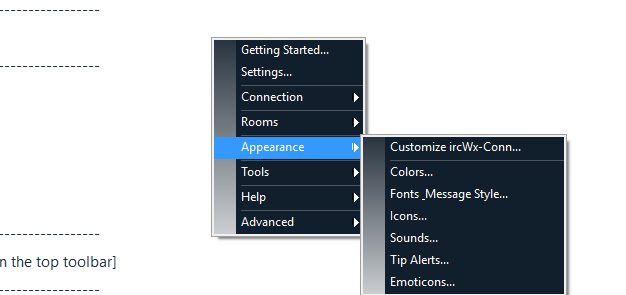
Right-click Status → Appearance → Customize ircWx-Conn... for a simple hub linking the major appearance tools.
Colors
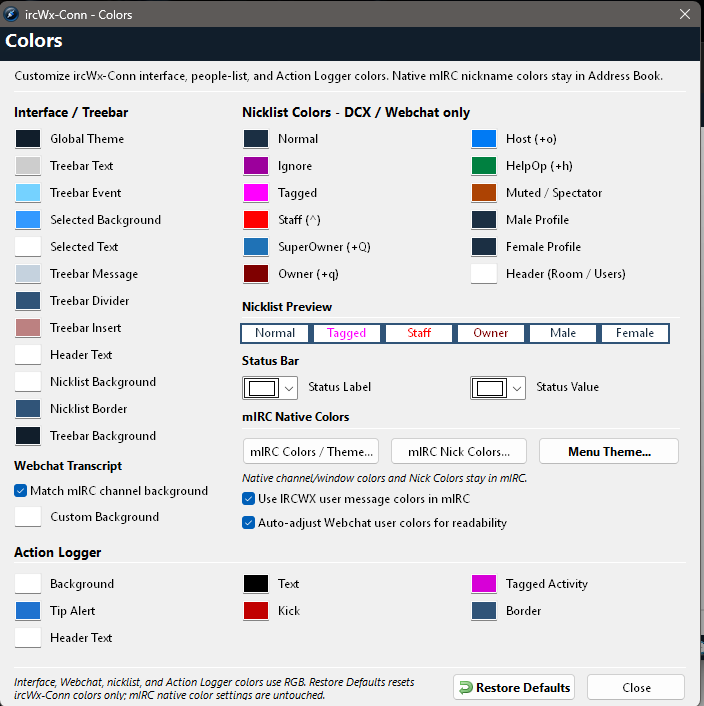
The ircWx-Conn Colors dialog controls the custom interface surfaces that ircWx-Conn owns, including interface colors, treebar-related colors, DCX/Webchat people-list colors, Webchat transcript settings and Action Logger colors.
Webchat readability
By default the embedded Webchat transcript can follow the native channel background. The Auto-adjust Webchat user colors for readability option helps keep user-selected message colors readable on both dark and light backgrounds.
Action Logger
You can control the Action Logger background, border and shared text/line-count color from the same Colors dialog.
Fonts & Message Style
Use Fonts & Message Style... to choose ircWx-Conn's display font choices and configure the style used for outgoing IRCWX messages.
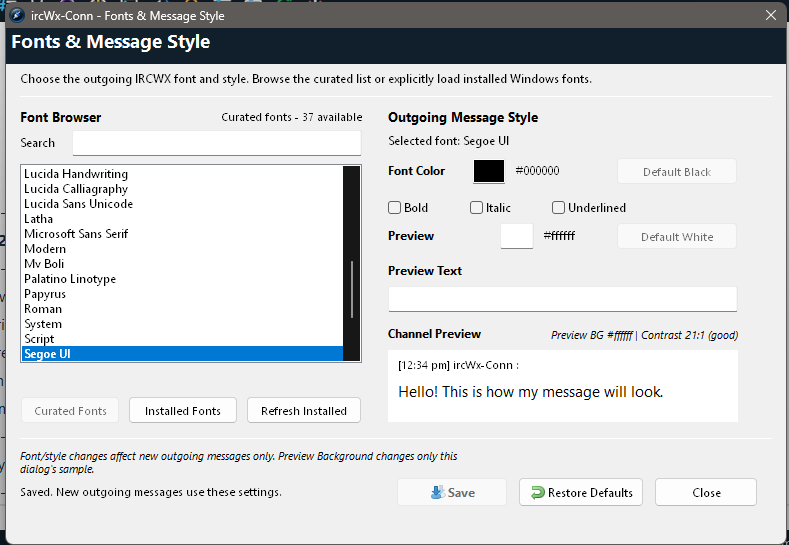
Outgoing style options include font color plus bold, italic and underline. A preview helps you see the result before committing to it.
Menu Theme
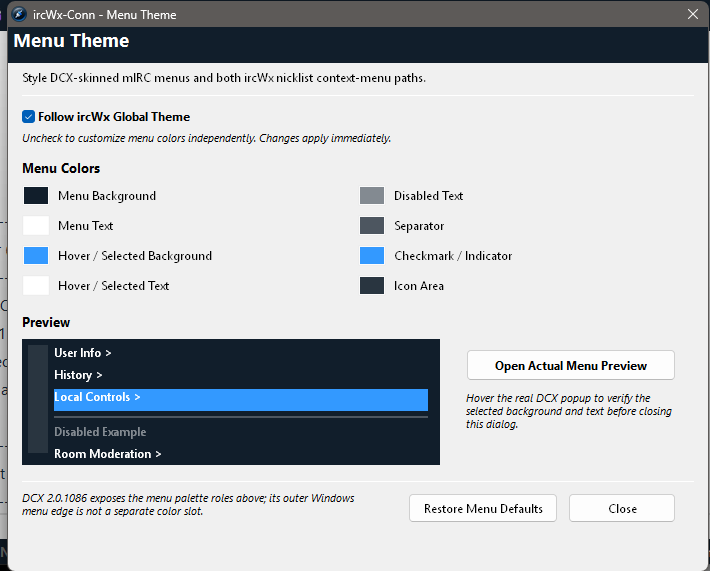
Open Colors → Menu Theme... if you want the custom DCX popup menus to follow the global ircWx-Conn colors or use their own background, text, hover, separator and indicator colors.
Icons
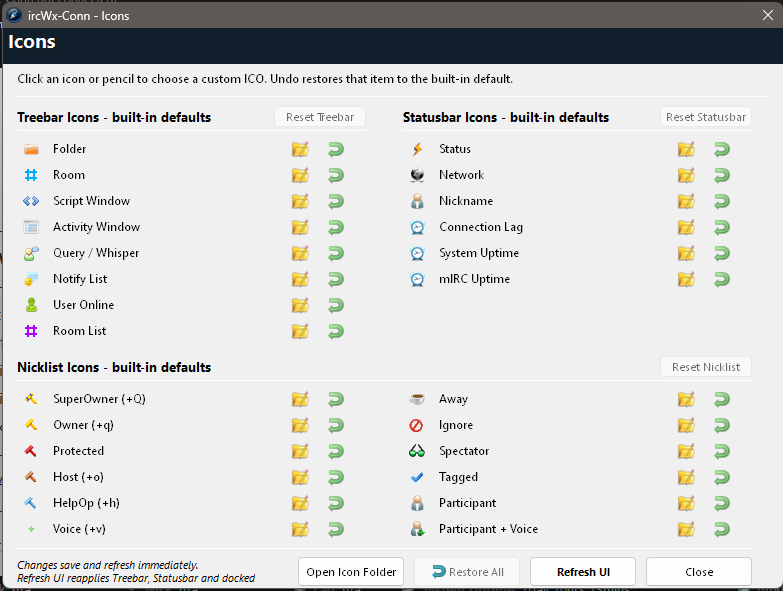
The Icons dialog lets you replace or restore icon choices for the treebar, status bar and people list. You can customize one surface without having to change the others.
Sounds & Tip Alerts
Sounds
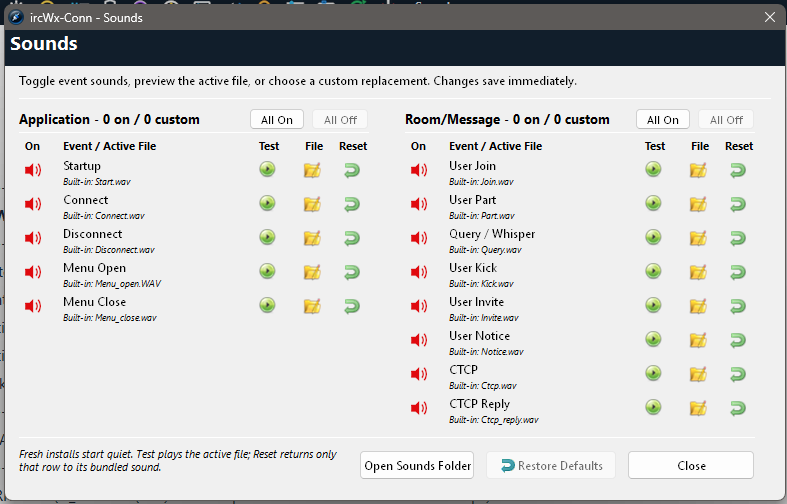
Choose the audio used for supported events such as startup, connect, disconnect, join, part, kick and other notifications.
Tip Alerts
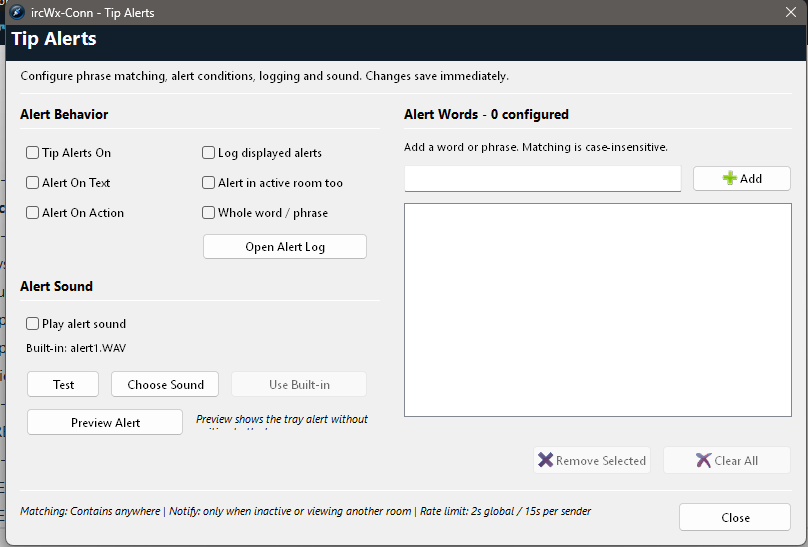
Control popup tip alerts and the events that are important enough to show one.
Restore appearance defaults
Appearance dialogs have targeted default/reset controls. Use those first when you only want to undo color, font, icon or menu experiments. Factory Reset is much broader and should not be used just to fix one color.