Webchat & Emoticons
Use ircWx-Conn’s embedded Webchat-style room window, transcript controls and live Buzzen-style emoticon picker.
Open a Webchat window
Right-click inside a room and choose Webchat → Open Window. You can also open a Webchat window for every currently joined room with Open All Windows.
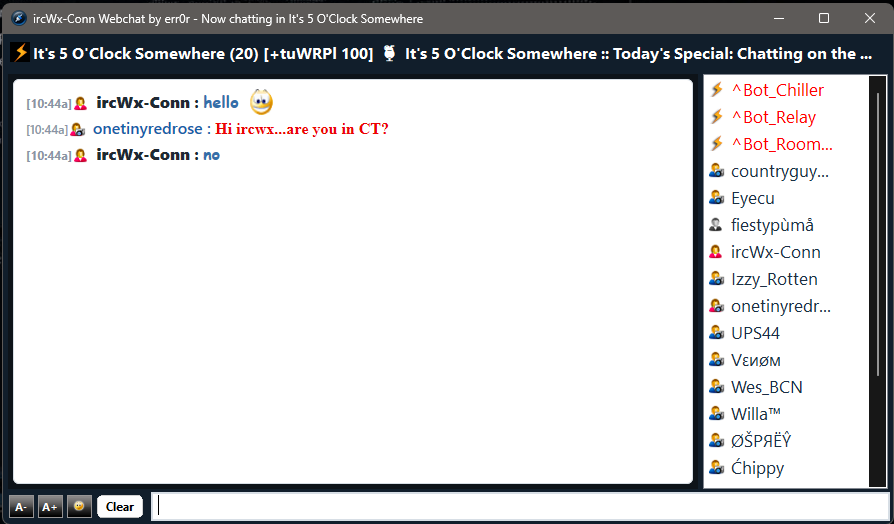
The Webchat window mirrors the same room rather than making a second network connection.
Webchat controls
- Message input — type and press Enter.
- Up/Down history — recall recently sent Webchat messages for that room during the current session.
- Text size — decrease or increase transcript text size.
- Clear — clear the current Webchat transcript.
- People list — uses the same IRCWX-aware user state and right-click actions.
Webchat Options
The room menu provides Webchat-specific preferences:
- Transcript line limit: 250, 500, 1000, 2000 or 5000 lines.
- Show/hide timestamps.
- Join, Part and Kick sounds.
- Reset Webchat Options.
Transcript background and user-color readability are configured under Appearance → Colors.
Emoticons
Open Appearance → Emoticons... or use the emoticon control in Webchat. The picker is designed for quick insertion: choose an emoticon and it is inserted into the appropriate input.
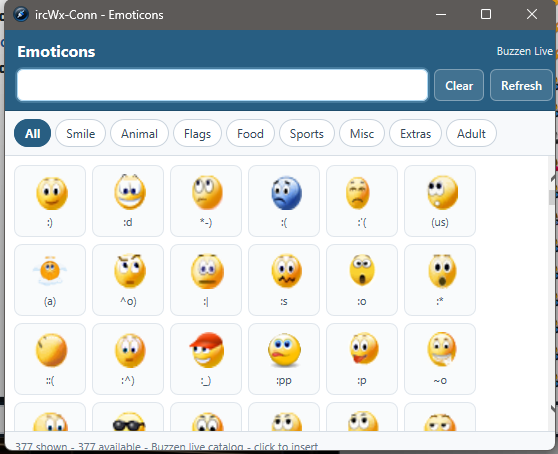
When Buzzen live-emote data is available, the picker uses the current mirrored emoticon information rather than relying only on an old fixed list.
Links and media
External links in the Webchat transcript are handed off to your normal browser. Supported GIPHY content can be displayed in the transcript without turning the Webchat into a general-purpose browser.
Clear vs close
Clear Current Transcript removes the displayed Webchat history for that room. Close only closes the Webchat window; it does not leave the IRCWX room. Use /part or the normal room controls when you actually want to leave.