Getting Started
Set up ircWx-Conn, connect to an IRCWX network and join your first room without needing to learn commands.
First launch
When ircWx-Conn does not yet have a complete connection, the Getting Started window is the easiest place to begin. It shows your current network and connection state and gives you direct buttons for the most common first tasks.
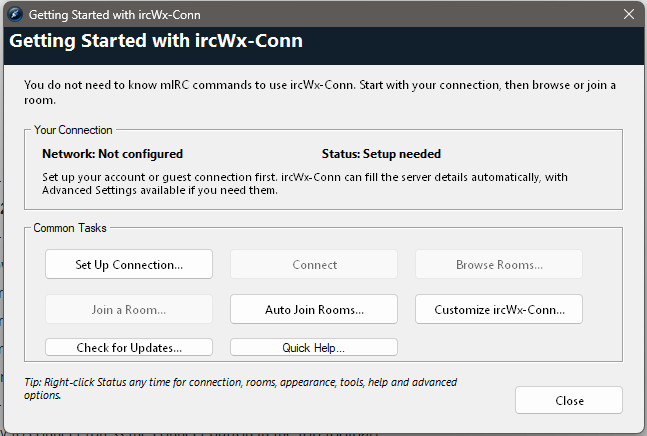
Set up your connection
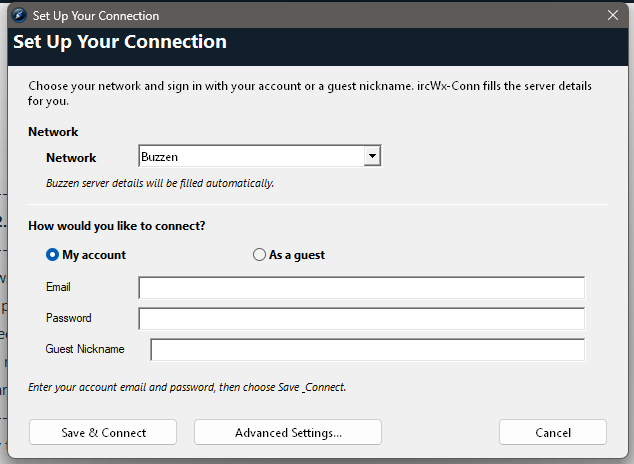
- Choose Set Up Connection....
- Select the IRCWX network you want to use. Presets can fill the normal server, port, web-domain and SSL/TLS details automatically.
- Choose Account if you have a registered account, or Guest if you want to connect with a guest nickname and that network supports it.
- For an account connection, enter your email and password. For guest mode, enter the nickname you want to use.
- Choose Save & Connect.
Advanced Connection Settings
Most people should use the simple setup. Open Advanced Connection Settings... only when you need to change the actual connection address, port, SSL/TLS setting or web domain, or when you are connecting to a custom/manual IRCWX service.
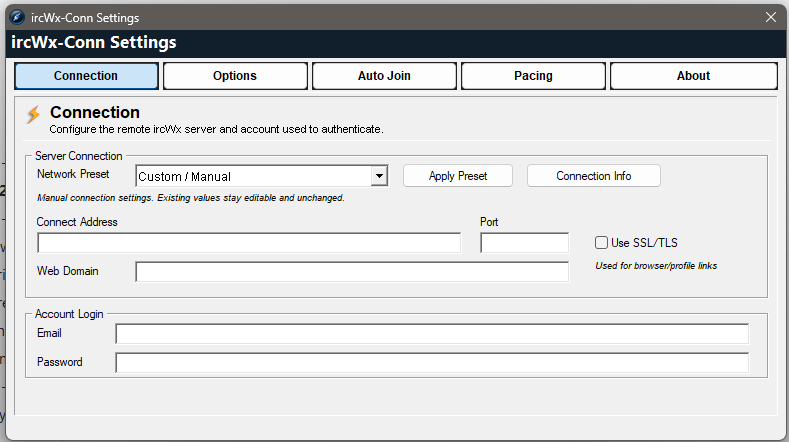
Network Preset
Fills the known server details for supported networks. The fields remain editable afterward.
Connection Info
Use this when you need the reference information associated with the selected network.
Connect and disconnect
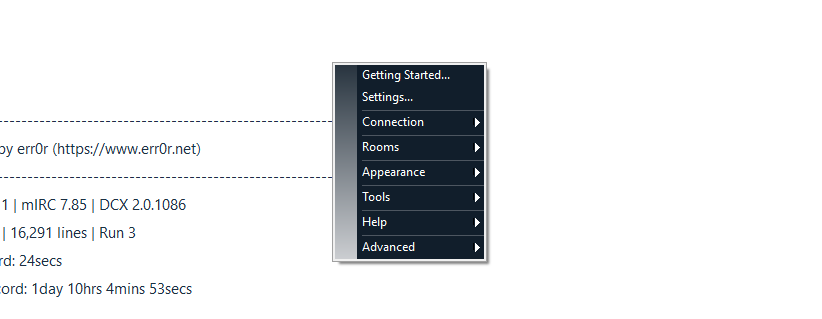
Use the top toolbar, or right-click Status → Connection. The menu changes with your current state: it can offer to connect, cancel a connection attempt, or disconnect.
Auto Connect
Enable Auto Connect if you want the configured connection to start automatically when ircWx-Conn starts.
Auto Join
Enable Auto Join Rooms if you want your saved room list to open after a successful login. See Rooms & Auto Join.
Join your first room
The easiest methods are Status → Rooms → Browse Rooms... or Join a Room.... You can type a normal friendly room name; ircWx-Conn handles the IRCWX room encoding for you.
/j room nameThe command above is optional. You do not need it if you prefer the dialogs.
What to learn next
Interface Tour
Learn what the toolbar, Status window, people list and Action Logger are for.
Chat & Whispers
Learn normal chat, actions, nickname menus and private IRCWX whispers.