Interface Tour
A plain-English tour of the main ircWx-Conn window, toolbar, Status menu, room windows and people list.
The main window
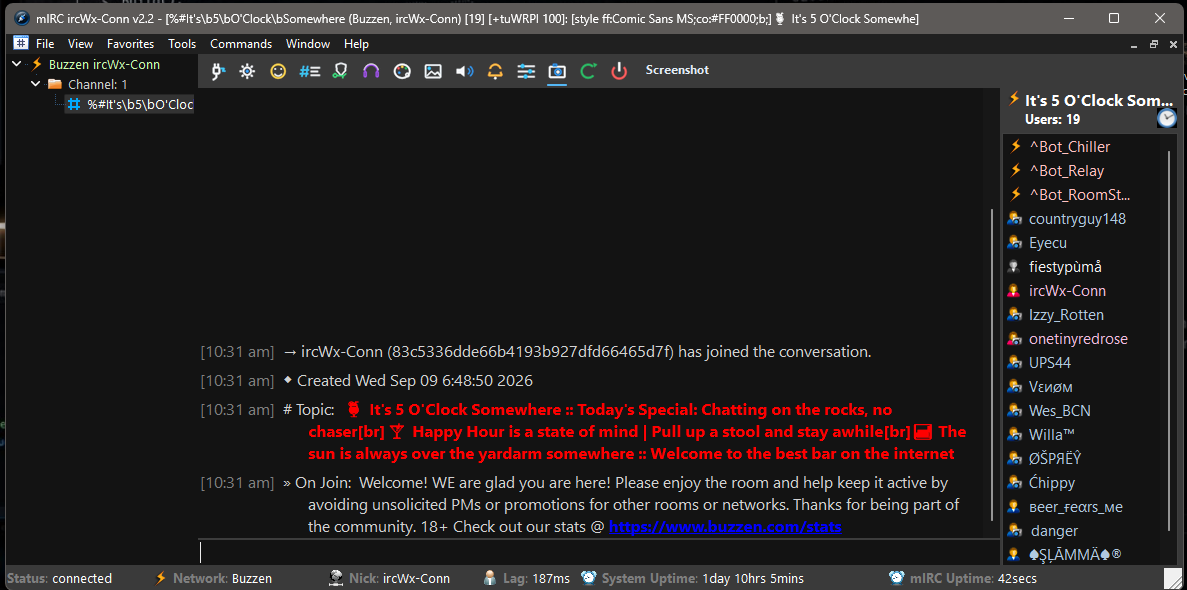
ircWx-Conn uses the familiar mIRC window layout, with extra IRCWX-aware controls around it. Depending on your settings you will usually see a toolbar across the top, a treebar for open windows, a room transcript, a message input and a people list.
Toolbar
The toolbar provides quick access to common actions such as connection, rooms, settings, colors, emoticons, music, screenshots and restart. Hover over a button to see its tooltip if you are unsure what an icon does.
Status is your main hub
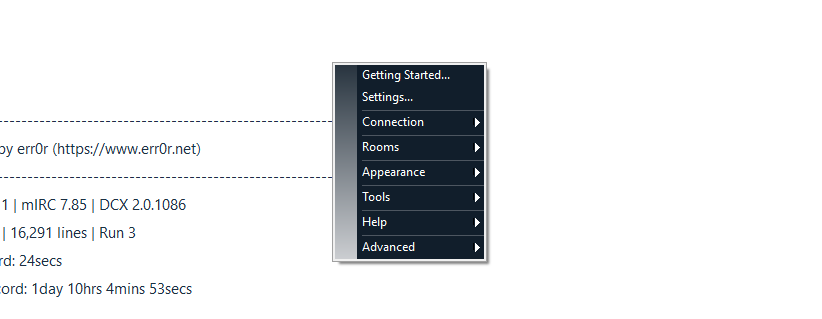
Right-click the Status window to open ircWx-Conn's main menu. This menu groups the client into useful sections:
Connection & Rooms
Connect, disconnect, browse rooms, join/create rooms and manage Auto Join.
Appearance
Colors, fonts, icons, sounds, alerts and emoticons.
Tools
Add-on Manager, Queue Manager, MP3 Player, Screenshot Manager and updates.
Help & Advanced
Quick Help, Getting Started, About, System Information, Developer Mode and Factory Reset.
Inside a room
A room window contains the conversation transcript and a message input. The people list shows who is present and uses icons/rank information to help distinguish owners, hosts, HelpOps, voiced users and other states.
Room right-click menu
Right-click inside a room for room-specific features such as AutoJoin, Channel Modes, Room Password, Access List, Room Lister, Webchat options and room properties when your rank permits them.
People-list menu
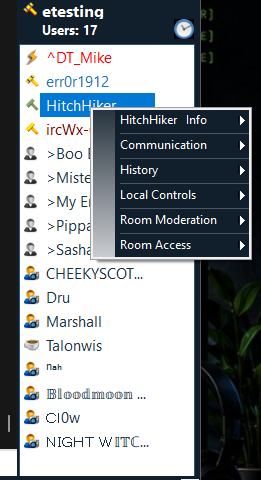
Right-click a nickname for profile, address, whisper, local time, away message, ignore/tag controls and moderation options when you have room authority.
Action Logger
The docked Action Logger is useful when you want a compact stream of joins, parts and other activity without losing your place in the main conversation. It can be shown/hidden, resized or locked, cleared and given a line limit.

Its background, border and text color are controlled from Appearance → Colors.
Status information
The status area can show connection/network information, your nickname, lag and local/system details. System Information... under the Advanced menu provides a fuller diagnostic view when troubleshooting.